Your Facebook News Feed recently began auto-playing videos. This can be annoying on a PC and downright harmful on your mobile device, as it can eat up your data or drain your device’s battery. However, you can disable the auto-play feature on PC and Android devices and save yourself the hassle. To disable auto-play videos on your mobile device, you’ll need to access the Facebook application ‘Settings.’ (The image below shows the settings on a Samsung Galaxy S4.) From here, check the box under “General Settings” for “Auto-play videos on Wi-Fi only.” The box is unchecked by default, which means videos will continue auto-playing on your Android device until you tell it not to. Unfortunately, you can’t completely turn off the feature on a mobile device, but you can save yourself some precious data.
Facebook’s Help Center topic addressing the issue explains how to make the edit on an iPhone or iPad. To turn off auto-play on your personal computer, go to “Settings,” then the “Video” tab at the bottom of the left hand navigation. From there, you can select the drop-down menu next to “Auto-Play Videos” and select “Off.” It’s important to note that you need to change the settings on both your phone and PC if you want to disable it, and that the changes don’t translate from one platform to another.
What do you think about the Auto-play feature? Facebook is encouraging users to provide feedback here.
A marketing campaign for the upcoming Ubisoft video game “Watch Dogs” aims to show users just how much of their personal info they put out on Facebook. The campaign, called “Digital Shadow,” works by obtaining a user’s permission to access their Facebook account. It then pulls information from their profile to create a “dossier” of the user as if they were the intended target of one of the assassins in the video game.
Digital Shadow shows users what photos they’ve tagged publicly, what friends they interact with the most, and which ones they’ve been Facebook stalking. And it goes even further: the program also shows users what times of day they are most active, their potential salary based on education and job title, and even possible passwords the user could have.
We don’t typically install Facebook applications like this, but the lure was too much for us to resist. And we wanted to check it out before passing the information along. Out of necessity, the app does ask for a good bit of personal information. One good thing is that they don’t require you to let the app post as you, so you won’t be spamming your friends unless you choose to do so.
All in all, it’s a pretty splashy marketing ploy, but it has potential uses beyond just selling you a video game. It’s also a fun, albeit creepy, way to find out just how vulnerable your Facebook profile is to prying eyes. If you run the test on yourself and aren’t pleased with the results, consider tightening your privacy settings or changing the information that may be available to public users.
We chose to uninstall the app after our Digital Shadow was rendered.
Facebook chief operating officer Sheryl Sandberg recently defended Facebook’s privacy practices in an interview with the BBC, saying that Facebook is extremely protective of user information. Her response came when concerns were raised about Facebook’s targeted advertising.
“Privacy is of the utmost concern and importance to Facebook, and it’s important to us that the people who use our service know that we are very protective of them,” she told the BBC. “It is their data, they have control of it, they share it. When we are able to personalize ads, we are doing that without sharing their private data with any advertisers.”
Sandberg also said that the very concept of being online is “old fashioned,” and that the increase in mobile technology will mean that people are connected all the time. Facebook is obviously looking ahead to that time with its recent interest in drone technology, wearable tech and virtual reality. However, her comments defending Facebook’s privacy policies likely stem from a long-running campaign to sway public favor back to the site after confidence in it was shaken following the high-profile NSA spy scandal last year. A survey last fall showing that many Americans trust Facebook less than the NSA itself shows that the site still has a lot of work to do.
Recent studies show That privacy concerns are very much on the minds of Facebook users. Part of being a responsible member of any online community is educating yourself and your loved ones on how to properly configure the privacy and security settings offered by the platform. The fact that Facebook has a billion members, and some are out to hack, scam and victimize others makes the issue even more pressing. Our goal was to create a guide that Facebook users could reference to help them set up their privacy and security controls quickly, easily and appropriate for their comfort level of sharing. This walk-through will show you how to configure your Facebook Account and Privacy Settings: We will start out with the Account Settings. Click the gear icon shown above, or if you are logged into Facebook, you can click this link and it will take you straight there: https://www.facebook.com/settings.
1. Create a strong, secure password. For more information on the importance on having a good password, see our post: The Top Ten Commandments of Password Protection. (Don’t use the same password for Facebook that you use to access other accounts) Security Settings – Click the ‘Security’ tab located in the left column:
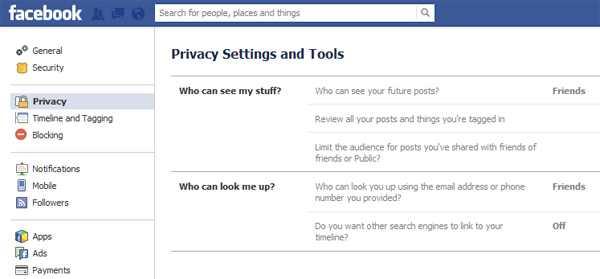
1. Enable Secure Browsing 2.Enable Login Notifications – (this lets you know when your account has been accessed) 3. Require Login Approvals – (this will require you to enter a code sent to you via text message if Facebook doesn’t recognize the device). This is a great way to prevent your account from being hacked. You can enable text notifications or use the Code Generator. 4.Setup a List of Trusted Contacts to help you reclaim a hacked account or if you lose your password. 5. End any active sessions you don’t recognize Privacy - Click the ‘Privacy’ tab located in the left column:
1. Set default privacy to Friends 2. Use the Activity Log to review all your posts and things you’re tagged in 3. Limit the audience for old posts on your Timeline 4. Set “Who can look me up?” to Friends 5. Don’t allow search engines to link to your Timeline
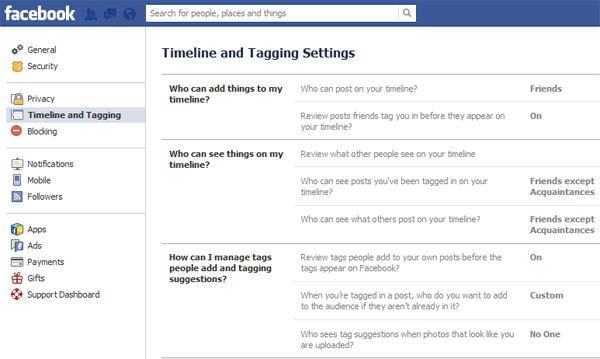
Timeline and Tagging -Click the ‘Timeline and Tagging’ tab located in the left column:
1. Under Timeline and Tagging, we recommend using the options shown above
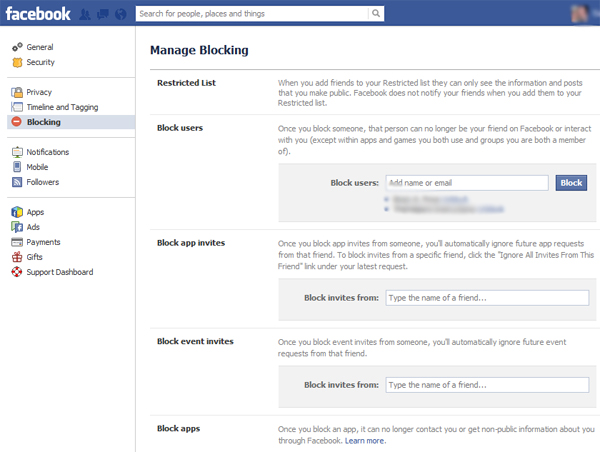
Blocking – Click the ‘Blocking’ tab located in the left column:
1. Here you can manage all of the people, applications and events that you have blocked on Facebook.
Mobile – Click the ‘Mobile’ tab located in the left column:
1. You will need to enter a mobile number here to enable login approvals. If Facebook doesn’t recognize your browser they will send you a code via text message that you must enter to complete the login.
Followers – Click on the ‘Followers’ tab located in the left column:
1. If you enable followers, these people will be able to see all of your public posts.
Apps – Click the ‘Apps’ tab located in the left column:
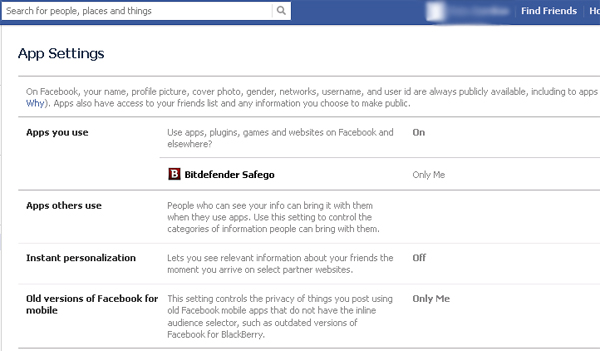
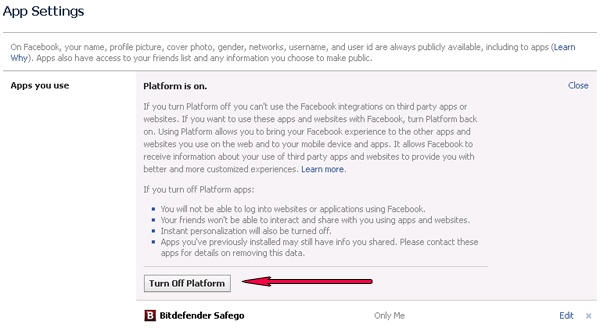
1. We recommend configuring your App settings as shown above. 2. Don’t install questionable third party apps and remove anything suspicious. For more information on why you shouldn’t install questionable FB apps, see this post: Why You Should Not Install Fun and Entertaining Facebook Applications. 3. If you don’t use apps at all and have no desire to, then you can totally disable them in the Apps you Use settings:
4. You’ll also want to edit the Apps others use setting to keep the applications your friends use from accessing your data:
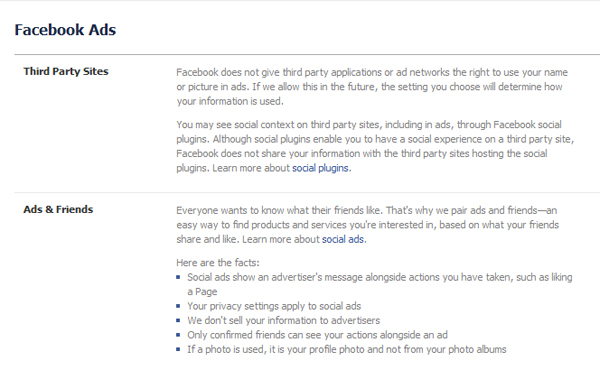
Ads – Click the ‘Ads’ tab located in the left column and edit these settings to ‘No one.’
Support Dashboard – This tab shows you the status of anything you have reported to Facebook. Privacy Shortcuts – Click the Padlock icon in the top right corner for quick access to these settings:
1. Set Who can see my future posts to Friends. 2. Use the Activity Log to review items you’ve been tagged in. 3. If you are ever curious to see how your Timeline appears to others, you can use the What do other people see on my timeline? feature.
1. Use Strict Filtering to limit the amount of spam you receive in your Facebook Messages folder. 2. Determine who you want to be able to send you friend requests – Friends of Friends or Everyone.
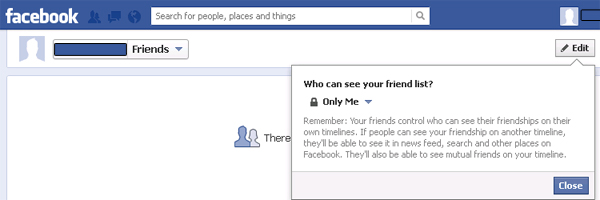
1. You can easily block people from contacting you by adding them here. Another important setting that is often overlooked is limiting who can see your ‘Friends List.’ Navigate to your Timeline and click on your friends box or link. Click the Edit button on this screen to access this setting.
1. It is best to set this to Only Me. If you have a friend that loses their account to a hacker, this can limit the damage they can do with fake Facebook profiles and the like. (Always block or unfriend a compromised account until it is reclaimed by your friend.
The last section that needs attention is your Timeline profile information. Click on your name in the upper right corner to be taken to your Timeline. Click on the ‘Update Info” link on the right side of the page.
1. Edit & Set Sharing Controls for all of the fields here to your sharing comfort level.
Only input information that you would be comfortable with the whole world seeing. Even if you set items to just “Friends,” what happens if a friend gets hacked? You don’t want a scammer having access to information that is typically reserved for just your friends.
We recommend the following settings
Only set items to be shared with ‘Friends’ or ‘Only Me.’ Don’t set anything to Public.
Show only the month and day of your birthday on your Timeline or a better option is to not display it at all.
Set your mobile phone visibility to “Only Me.”
Don’t enter your work or home phone numbers.
Do not enter your complete address – (only enter City & State or leave it totally blank)
Parting Thoughts
Public Pictures – Your profile picture and cover photo are public by default, and this setting can’t be changed. If this concerns you, then don’t use a personal photograph. Also, be sure to use sharing controls for your photos and albums.
Be careful what you post – once you post something online it can potentially come back to haunt you. Use the built in sharing controls for status updates and other posts to limit access to the intended audience.
Be careful what you click – Even if all of your controls are set properly, clicking malicious links and installing malware can not only wreck your computer system, but it can affect your privacy and online safety as well.
Logout of Facebook – Facebook has been known to track user activity on other websites, so logout when you are not using Facebook. Also, staying logged in can make it easier for your account to be hacked if you login from shared computers.
Anti-virus software – install a reputable security software application and keep it updated.
1) Uninstall the software after the trial period has expired
2) Start -> search -> (tastati) regedit + ENTER ...
HKEY_CURRENT_USER -> Software -> search program folder (eg Avast Software) -> right click -> delete
HKEY_LOCAL_MACHINE -> SOFTWARE -> search program folder (eg Avast Software) -> right click -> delete
3) Reinstall the program (trial version) and another 30 days trial , This method is perfectly legal and requires no patch / crack and license key etc.. You can use this method always !
Do not delete from elsewhere outside SOFTWARE ( Folder) because damage your windows !
5 Deadly linux commands that can Destroy one System
1. Command > rm -rf / = It will Delete Everything Explanation : It is a combination of three keywords. First is : rm It will remove all the files followed by this command. Second is : -rf This will run rm command in more effective way and will remove everything ( all files and folders inside the specified folder )without asking confirmation from the user. Third is : / This will start removing the data from the root directroy and will delete everything from the computer including the data of removable media.
2. Command > ){ :|: & };: = Shell function that gets repliacated. This command creates a shell function , which once get initialized starts to create multiple copies of itself.It results in taking quickly all the memory and power of CPU.It makes computer freeze or not responding. This is also known as Denial Of Service Attack.
3. Command > mkfs.ext4 /dev/sda1 = This command will format the hard disk Explanation : This command is again composed of two keywords. First is : mkfs.ext4 : This part of command will create a new ext4 file system on following device where this command will get executed. Second is : /dev/sda1 ;This part of command specifies the 1st partition on the first hard disk which is probably in use by the user. Similarly, This Command > mkfs.ext3 /dev/sdb2 will Format the second partition on the second hard disk with ext3 File system.
4. Command > /dev/sda – Write Any content Directly to a Hard Drive. Explanation : This command will execute normally as other commands in linux do. But output of this command will directly be sent to the file system (NTFS or FAT ) of the Hard Drive. It will result into damaging the file system of the computer.
5. Command > mv ~ /dev/null – Beware it Will Move your Home Directory To Black hole. Explanation : Moving any of your content and data to following path : /dev/null means you want to destroy it. It means /dev/null is a black hole where once anything sent , can not be recovered back. Note:Many of these commands will only be dangerous if they’re prefixed with sudo on Ubuntu – they won’t work otherwise. On other Linux distributions, most commands must be run as root.
Sometimes, there is a downside to the fact that the internet makes everything so easy. Case in point: cybercrime. Without ever seeing you, total strangers can access passwords and information that will give them access to your funds, credit and even your identity. In short, any personal data that you have access to online, from bank accounts to sensitive emails, can fall prey to a hacker. One of the most common ways of internet fraud is through the use of keylogging or the use of spyware to monitor every keystroke you make. Such criminal technology is all the more sinister in that it can be difficult to detect; however, if you are vigilant, it doesn’t take a tech whiz to keep the keyloggers at bay. Here are some reliable guidelines to prevent your information from getting hacked, to know if you are being keylogged, and what to do if you know you’re being compromised:
Prevention and detection
Know your control panel. This sounds simple, but keeping track of your authorized programs may be all you need to do. If there’s a mystery guest on your panel, check it out ASAP—this may even include hardware that your computer sees, but simply does not exist! Regularly “do the sweeps.” A number of routine security precautions are also reliable ways of routing out spyware. Do regular scans with a reliable virus protector to find possible trojans, and always make sure your firewall is up. You should also inspect all running programs from time to time by pressing the “control”, “alt” and “delete” keys to consult your task manager. Always consider the source. In short, never open a file from someone you don’t know—this includes pop-ups from mystery contacts. Most of all, never respond to pop-ups or emails requesting you to update your ID’s or passwords; it’s almost certainly a scam. Finally, while this may seem slightly overboard, make a habit of intermittently checking the web addresses of the sites you visit. Dummy sites used to harvest vital information may be perfect facsimiles, but they will have suspicious-looking urls. Use the big guns. If you regularly access particularly sensitive materials or you have reason to suspect you are a repeated target, it would be wise to take special precautions. Certain programs, such as Microsoft’s Process Monitor or Hijack This, will find any invaders. You may also consider running from a virtual PC so you can leave fewer trails for hackers to follow.
Removal
If one of the methods above sends up the red flag, getting rid of the keylogger will only take a few steps: Go to the task manager and click “end process”. If you share a computer, make sure that the program you’re removing is indeed a spy implant. Remove the spy program by downloading a free software removal tool—obviously, you won’t want to make an online purchase while you’re being monitored! PC Whiz is a good user-friendly option. Reboot your computer and play it safe by updating your anti-spyware arsenal. Most of them are reasonably priced or even free, but make sure you’re using a reputable provider: some of the most devious hackers find their targets by offering fake spyware detection. In some cases, spyware can be so pernicious that you’ll need a computer professional to debug your computer; however, even the most casual computer user can take care of things on their own. Again, the best solution is prevention, so use the above tips to make sure you never have a problem in the first place.






![[Image: dHnWOrq.png?1]](http://i.imgur.com/dHnWOrq.png?1)
![[Image: 7OcYWnI.png?1]](http://i.imgur.com/7OcYWnI.png?1)
![[Image: yHHsWSo.png?1]](http://i.imgur.com/yHHsWSo.png?1)
![[Image: c9dxAoR.png?1]](http://i.imgur.com/c9dxAoR.png?1)


